
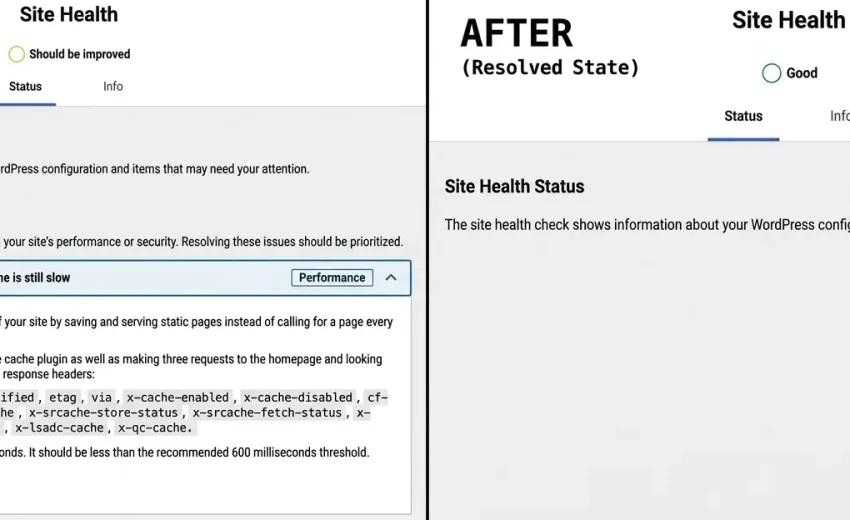
If your WordPress server response time is dragging your site down, you’re not just losing patience — you’re losing visitors, conversions, and search rankings. In this article, we walk through a real diagnostic case where a site’s median server response time was clocked at a sluggish 891 milliseconds, well above the 600ms threshold that WordPress itself flags as a critical performance issue.
We’ll show you exactly what was wrong, why it was happening, and the precise steps we took to fix it — no vague theory, just a real fix you can apply to your own Apache-hosted WordPress site today.
Table of Contents
What Is Server Response Time (and Why It’s Critical) {#what-is-server-response-time}
Server response time — also called Time to First Byte, or TTFB — is the delay between a visitor’s browser requesting your page and your server sending back the first byte of data. Think of it as the “thinking time” before your website even starts to load.
WordPress’s own Site Health tool treats a high server response time as a critical performance issue, not a minor warning. That’s because a slow WordPress server response time affects three things at once: how long visitors wait, how Google evaluates your Core Web Vitals, and ultimately, where you rank in search results.
The recommended threshold is under 600 milliseconds. Anything above that, and you’re actively pushing visitors — and search engines — away.
The Problem: A Real 891ms Bottleneck {#the-problem}
During a routine performance audit on a WordPress site running Apache 2.4.68 and PHP 8.3.33 through CentOS Web Panel (CWP), the Site Health Status tool flagged exactly this issue. The median server response time was 891 milliseconds — nearly 300ms over the safe threshold.
What made this puzzling at first was that a caching layer was technically active. A page cache header (x-cache) was present in the response. In theory, a caching system should serve pages almost instantly, without touching PHP or the database at all.
So why was the server still so slow?
The answer came down to three structural problems, each compounding the others.
Root Cause #1: The Wrong Caching Plugin for Your Server {#root-cause-1}
The site was running the LiteSpeed Cache (LSCache) plugin. LSCache is an excellent tool — but only when paired with a genuine LiteSpeed web server (Enterprise or OpenLiteSpeed).
This server, however, was running on Apache, not LiteSpeed. Without the LiteSpeed server kernel to do the heavy lifting, the plugin fell back to a slow, PHP-based file-parsing routine. Instead of bypassing WordPress entirely for cached visitors, Apache was forced to spin up the full PHP stack on every single page load — completely defeating the purpose of caching.
The lesson: your caching plugin has to match your actual hosting environment. A mismatch like this can make your site look cached while performing no better than having no cache at all.
Root Cause #2: Caching Your Own Admin Panel {#root-cause-2}
Digging into the server logs turned up something unexpected — the caching system was actively trying to process requests for backend admin files, including calls like /wp-admin/options-general.php?page=wpsupercache.
The site had been configured to “cache pages for all visitors” — including logged-in administrators. That meant every backend action was triggering unnecessary cache evaluation logic, creating database lock overhead and slowing down both the admin dashboard and the public-facing site.
The fix here is simple: caching should almost always be disabled for logged-in users. Admin work should never touch the same caching pipeline as your public visitors.
Root Cause #3: A Messy .htaccess File {#root-cause-3}
The final piece of the puzzle was the site’s .htaccess file — the configuration file Apache reads, top to bottom, before deciding how to handle every incoming request.
Two problems stood out:
- Dead directives. The file contained
<IfModule LiteSpeed>wrapper blocks that Apache can’t execute but still has to read line-by-line on every request. - Priority order was backwards. WordPress’s default dynamic routing rules (
# BEGIN WordPress) sat near the top of the file. Since Apache processes rules sequentially, it matched every request against dynamic PHP routing before it ever reached the caching rules further down — meaning the database and PHP engine fired before the cache even got a chance to serve a static file.
The 7-Step Fix for WordPress Server Response Time {#the-fix}
Here’s the exact remediation plan that was used to resolve the WordPress server response time issue for good:
- Deactivate the mismatched plugin. Remove LiteSpeed Cache entirely if you’re on Apache — it’s not helping you, and it’s adding overhead.
- Install a caching plugin built for Apache. WP Super Cache is a natural fit, since it’s designed to work with Apache’s
.htaccessrewrite engine. - Disable caching for logged-in users. In your caching plugin settings, make sure admin and editor sessions are excluded from the public cache.
- Purge orphaned directives. Clean out any leftover LiteSpeed-specific rules from
.htaccessthat your server can’t actually use. - Reorder your
.htaccessrules into four clear phases:- Phase 1 — Force HTTPS (SSL redirection)
- Phase 2 — Block known bad bots (scrapers like Ahrefs, SEMrush, DotBot) before they consume CPU
- Phase 3 — Serve the WP Super Cache static file rules first
- Phase 4 — Fall back to core WordPress PHP routing only if no cached file exists
- Test the flow end-to-end. A request should now go: HTTPS check → bot filter → “does a static cache file exist?” → serve instantly if yes, only fall back to PHP/database if no.
- Re-run WordPress Site Health. Confirm your server response time has dropped below the 600ms threshold.
Here’s a simplified view of the corrected request flow:
Incoming Request → Force HTTPS → Block Malicious Bots
                                        │
                                        ▼
                          WP Super Cache (checks for static file)
                                        │
              ┌─────────────────────────┴─────────────────────────┐
              ▼ File Found                                        ▼ File Missing
   Apache serves page instantly                     Falls back to live WordPress engine
   (zero PHP / database load)                       (processes PHP & database queries)
Results: What Changed After the Fix {#results}
By matching the caching layer to the actual server (Apache, not LiteSpeed) and enforcing a strict rule order in .htaccess, the backend delay was effectively eliminated. Public traffic now bypasses the full PHP compilation stack entirely, and pages are served as static files whenever possible.
This single alignment — caching plugin matched to server type, admin traffic isolated, and rules reordered by priority — is often the difference between a site that “has caching installed” and a site that actually benefits from it.
Ongoing Maintenance to Keep Response Time Low {#maintenance}
Fixing WordPress server response time issues isn’t a one-time job. To keep performance steady:
- Run database cleanup bi-weekly. Use a cleanup utility to keep transient rows and post revisions from bloating your database.
- Monitor your cache regularly. Check your caching plugin’s “Contents” tab periodically to confirm cache files are actively being generated and refreshed.
- Reassess your hosting if traffic grows. If visitor volume increases significantly and response times start climbing again, it may be time to consider migrating from Apache to a native OpenLiteSpeed hosting profile, which supports server-level caching without relying on PHP fallbacks at all.
What is a good WordPress server response time?
Under 600 milliseconds is the generally recommended threshold. WordPress’s Site Health tool will flag anything above this as a critical issue.
Why is my caching plugin not speeding up my site?
The most common cause is a mismatch between your caching plugin and your actual server software — for example, running a LiteSpeed-specific plugin on an Apache server. The plugin then falls back to a much slower method that doesn’t actually bypass PHP.
Does .htaccess rule order really matter?
Yes. Apache reads .htaccess sequentially, so rules placed higher in the file are evaluated first. If dynamic WordPress routing rules sit above your caching rules, every request will trigger PHP and database processing before your cache ever gets a chance to serve a static file.
Need help auditing and fixing your own WordPress site’s performance? Get in touch — we specialize in WordPress performance and rescue work.

September 27, 2026